
Add images and videos to your site and all your package landing pages. Read on to learn how! 🎨
Website Logo
Upload your logo into the profile pic section of your site.
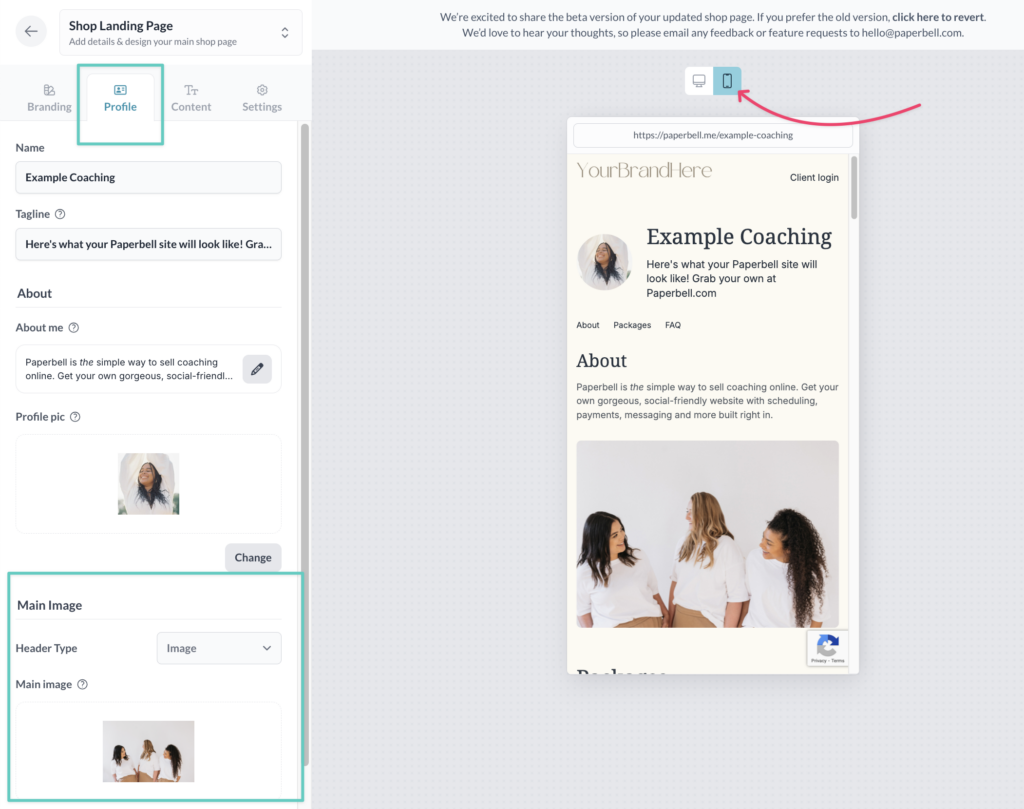
To get there, click into your Homepage editor, and then the Profile tab.
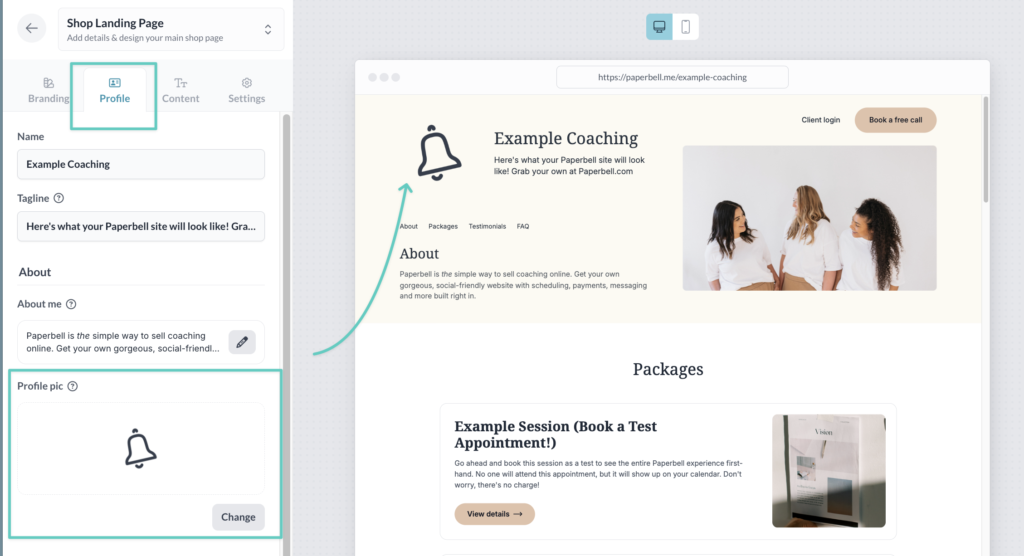
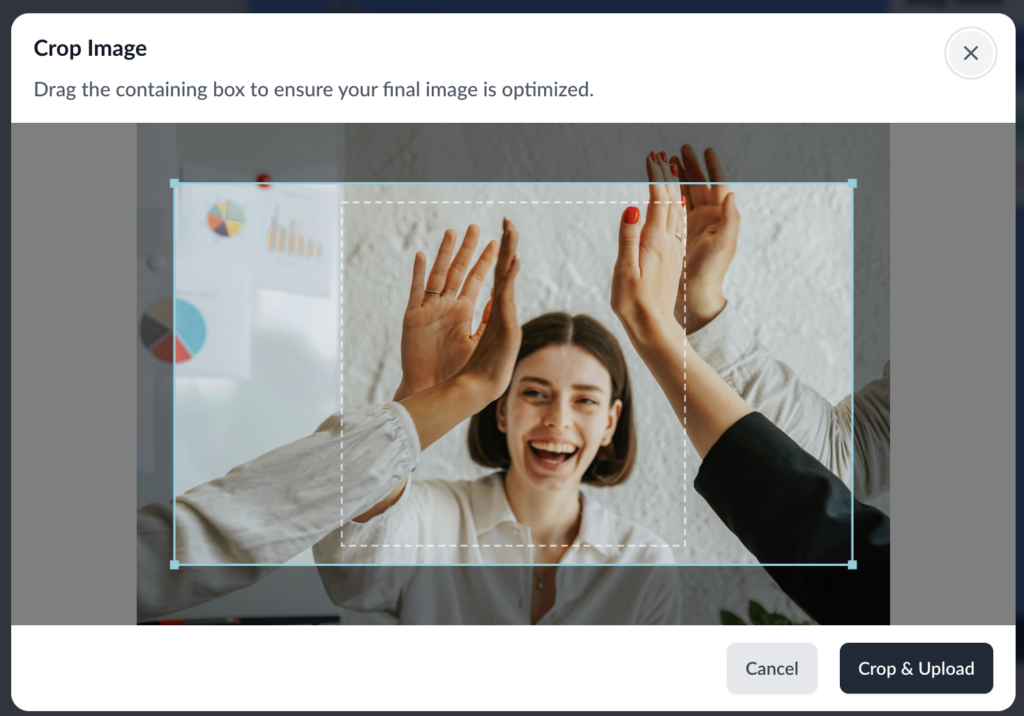
When you upload your image, a cropping tool will pop up, so you can resize if necessary.
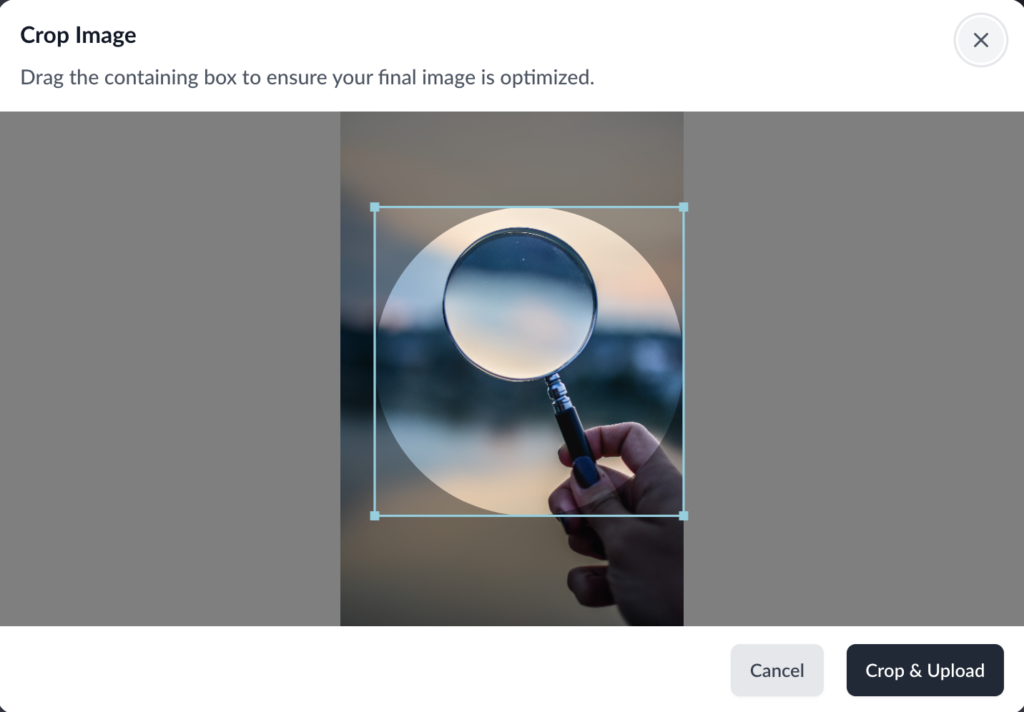
Overachievers take note:
- Your logo should be a square image, sized 250 x 250 pixels (just use the guidelines in the tool!)
- Use our Canva template to make sure you’ve got the right size
- Crop the file as close as possible to the image itself, without bordering white space
- Save as a PNG file
Main Image
The main image sits at the top of your site, alongside a description of your business and your About section.
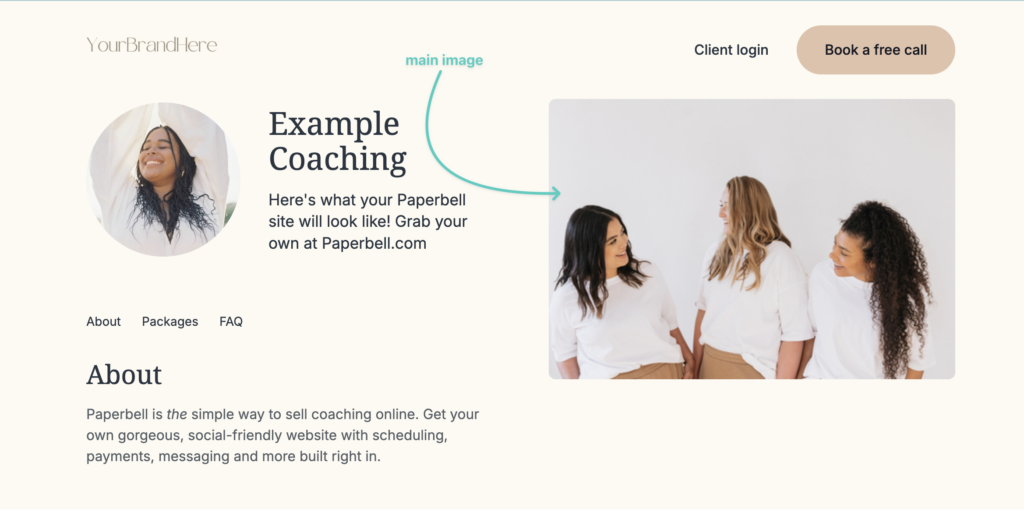
Add your main image or video by clicking into your Homepage editor, then the Profile tab.
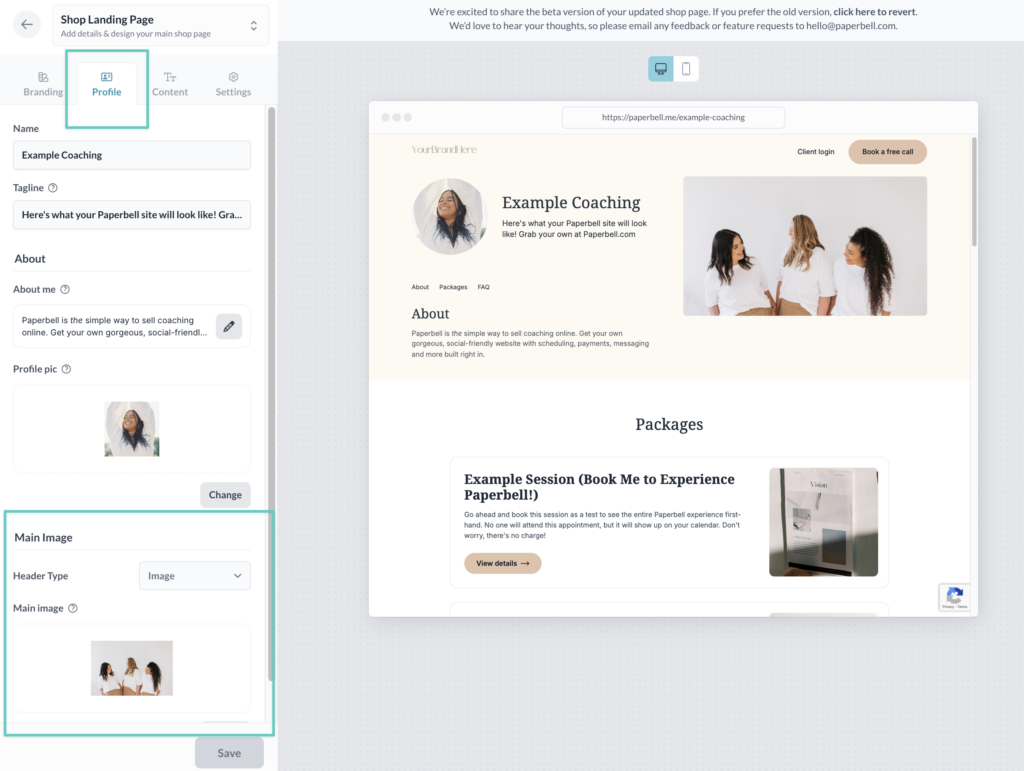
Choose whether you’ll add a video or image in the Header Type menu.
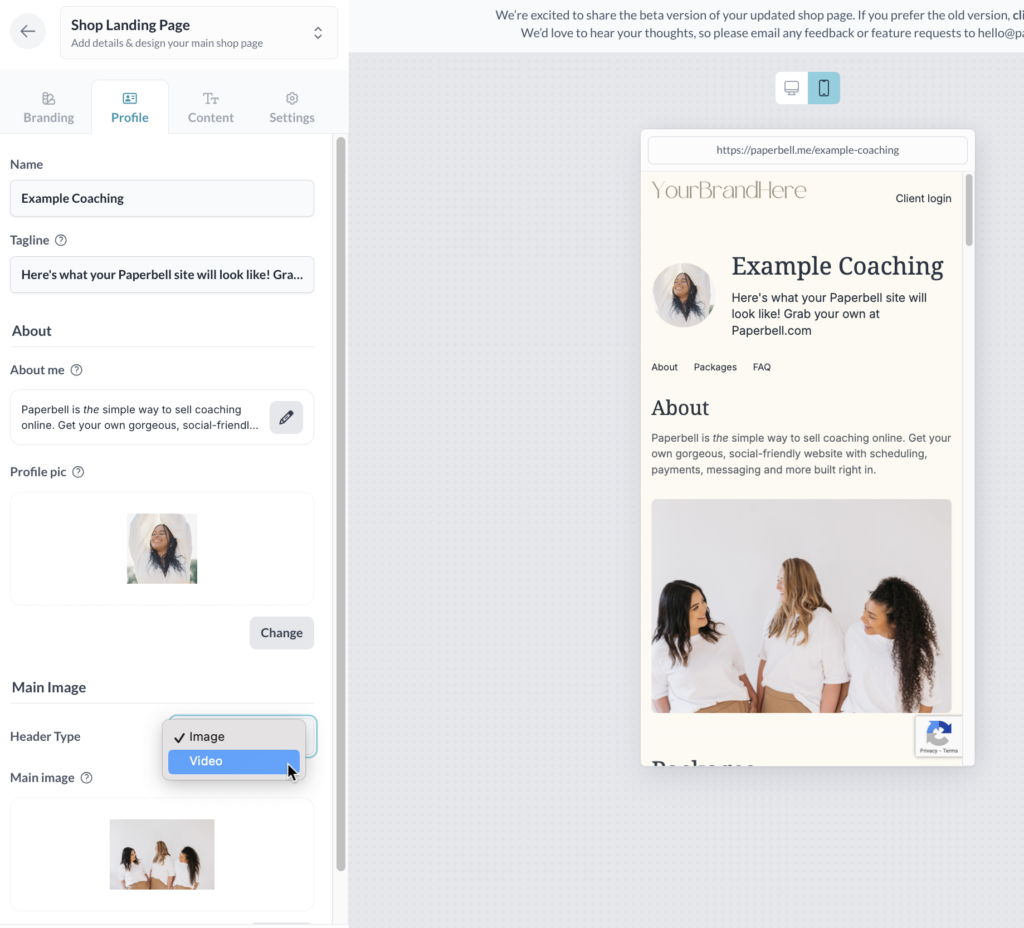
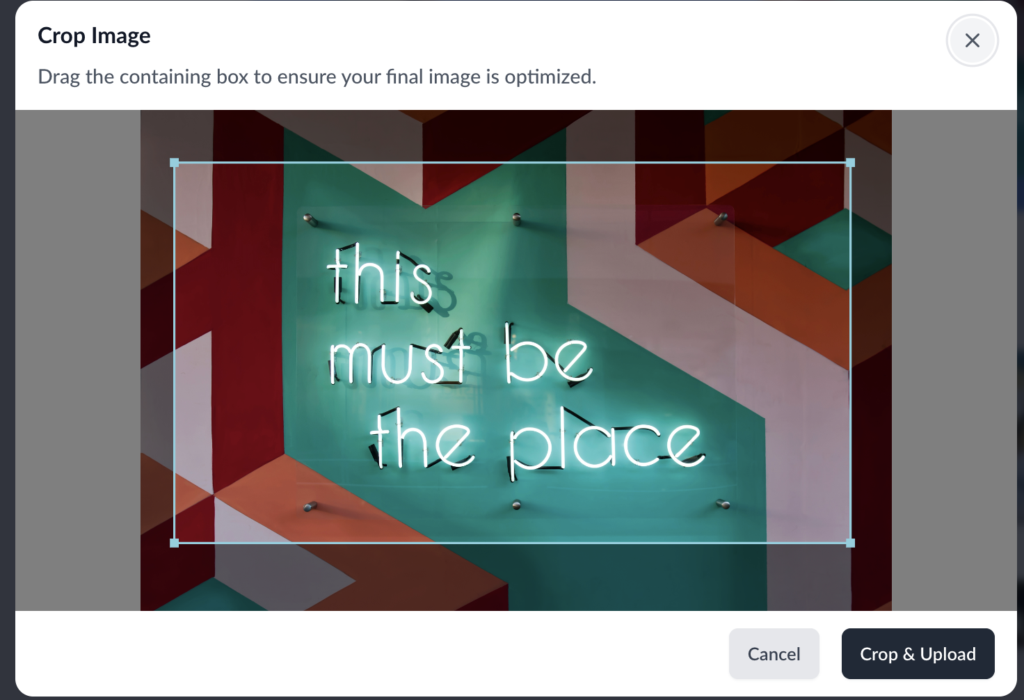
For the best looking main image, use our cropping guidelines when you upload.
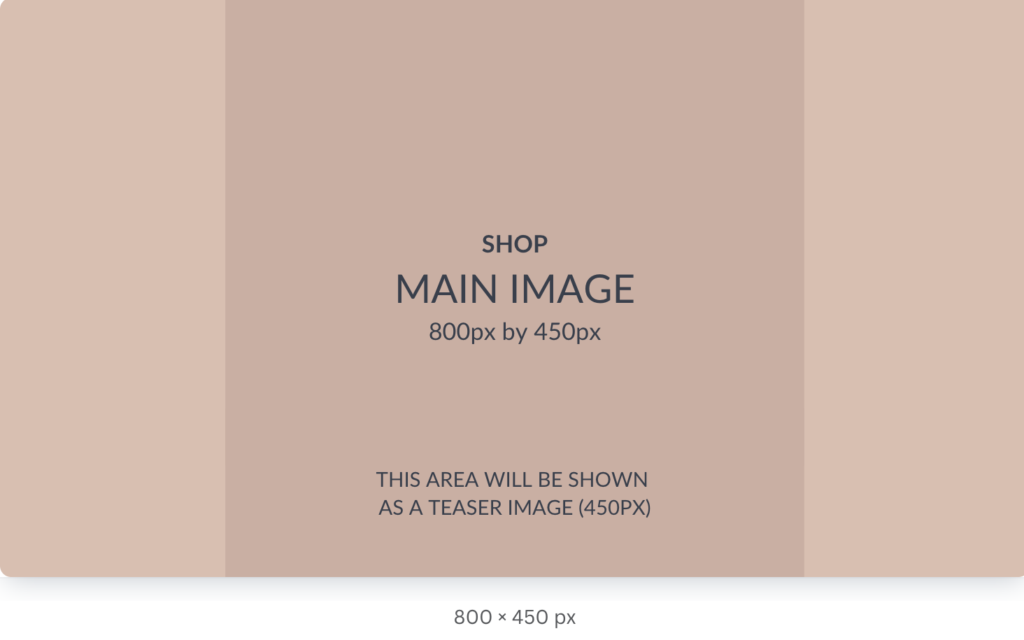
To get into the nitty gritty:
- Use our Canva template
- Size your image to 800px wide x 450px high
- Keep in mind that a central square, 450px x 450px, will be the teaser image — so make sure text or the key images are in the center ⬇️
Don’t forget to check out how your image looks on the mobile site!
Profile Pic
Your profile pic will show up next to your About Me description on your homepage.
Click into the Profile tab and scroll down to the Profile pic section.
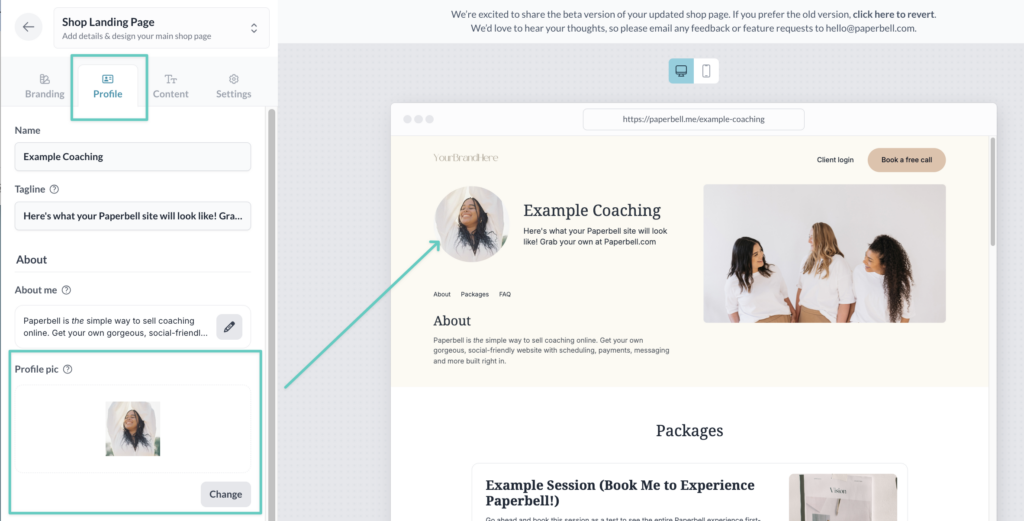
Upload your pic and resize with the guidelines in the cropping tool that automatically opens:
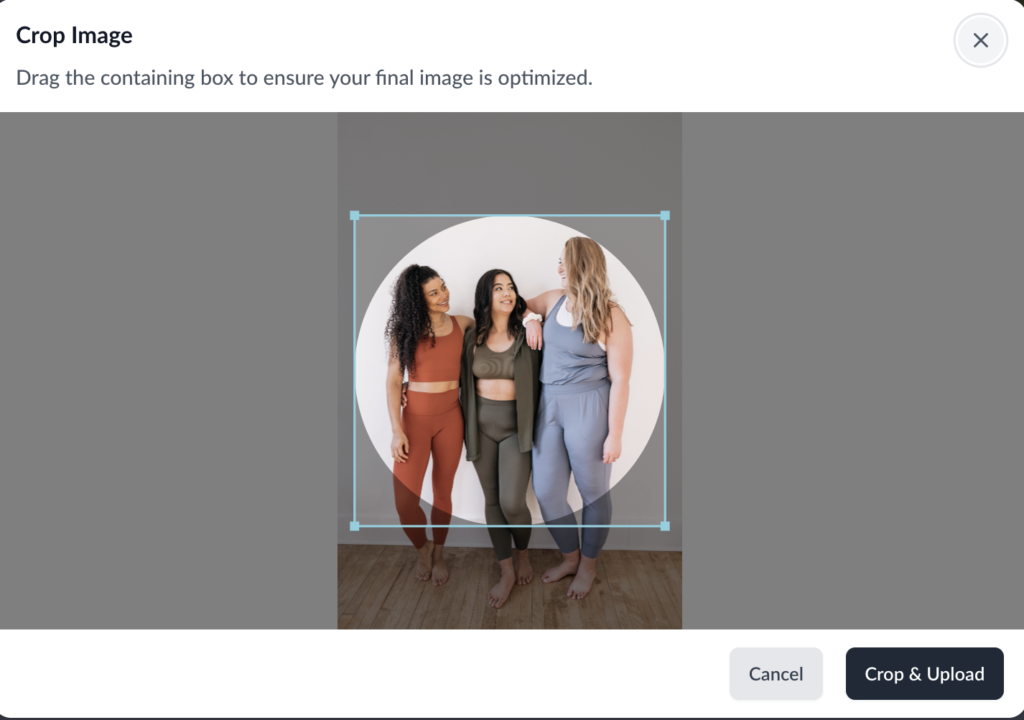
To get the best results for your profile pic:
- Size it to a square 250px wide x 250px high
- Use our template in Canva
- Save as a PNG
Package Cover Image
First, go to your Packages page and select the package you want to modify. Click the Landing page tab and make sure you’re in the Overview tab.
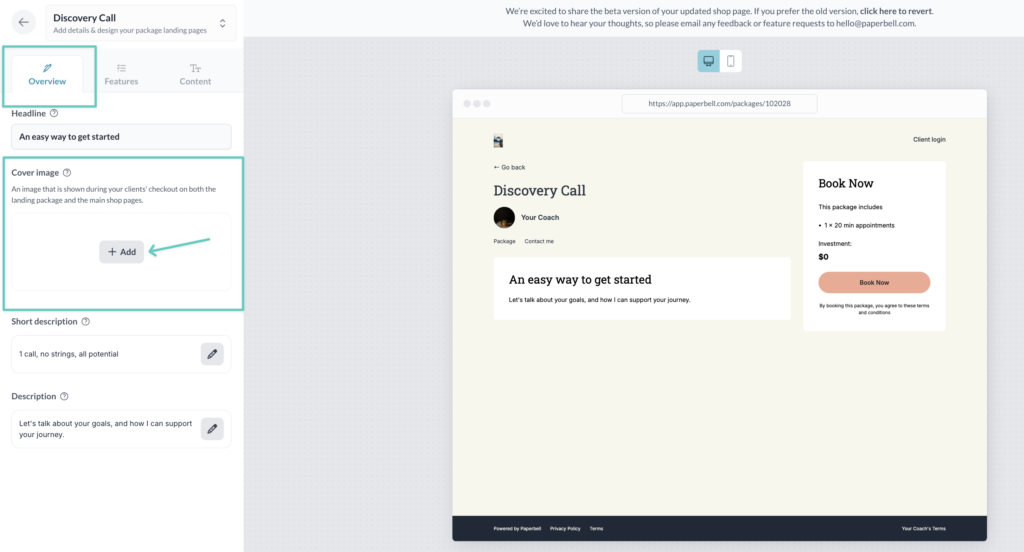
Your cover image shows up above your package description on the landing page, and on your homepage above your brief package description.
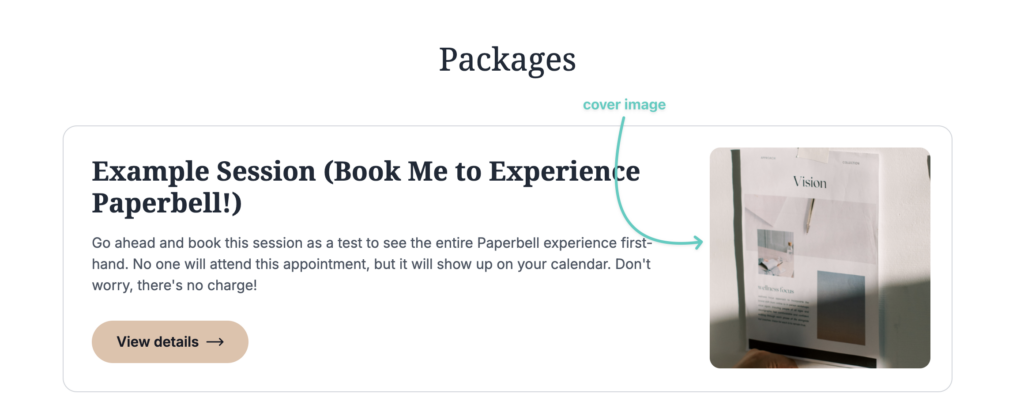
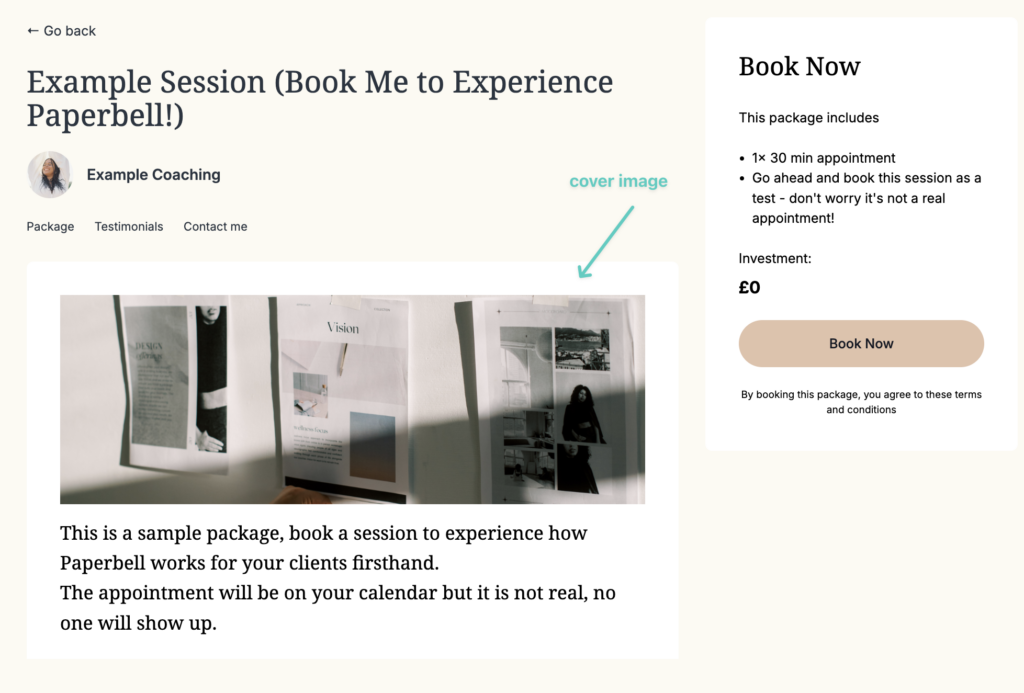
Use the resizing tool that opens when you upload your photo to get the best dimensions for your cover image.
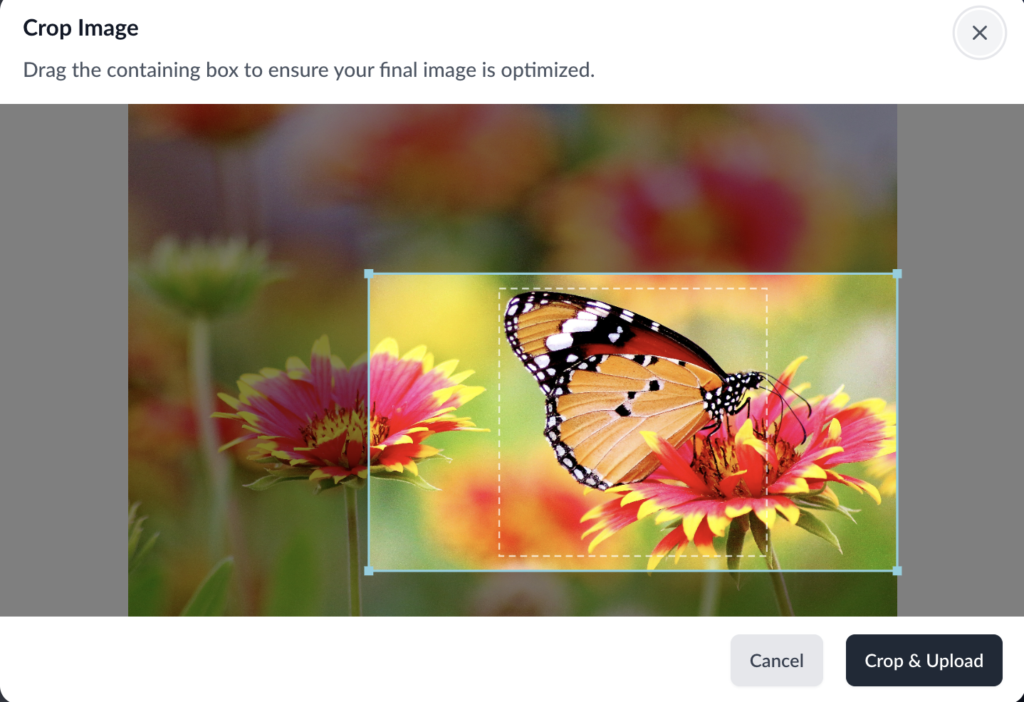
To resize before uploading:
- Size to 800px wide x 450px high
- Use our template in Canva
- Save as PNGs instead of JPGs
Package Description Images
You can add additional images to both the short and long package descriptions. They’ll appear inside the text box, so you should resize them before uploading.
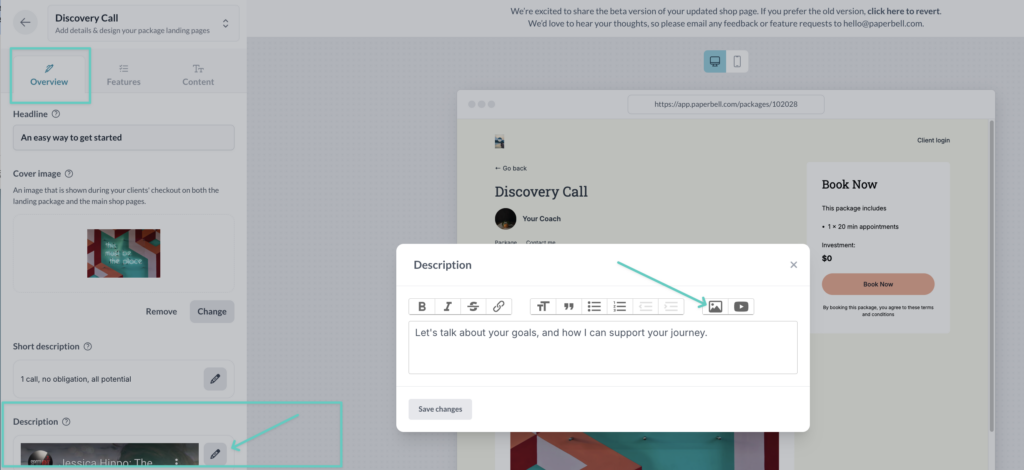
Embedded YouTube Videos
Short description
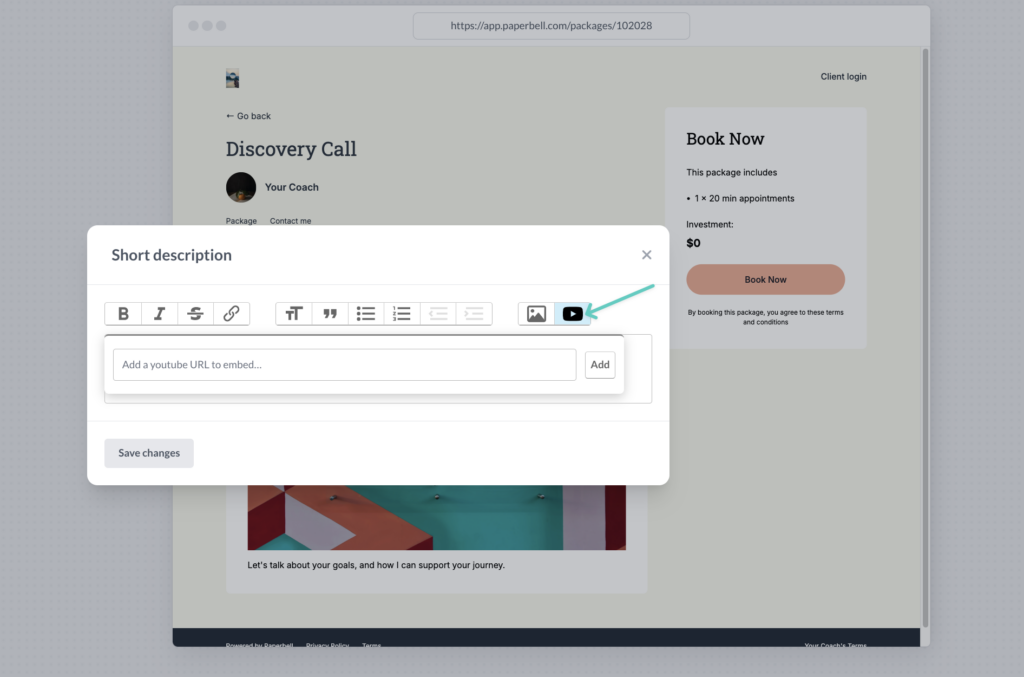
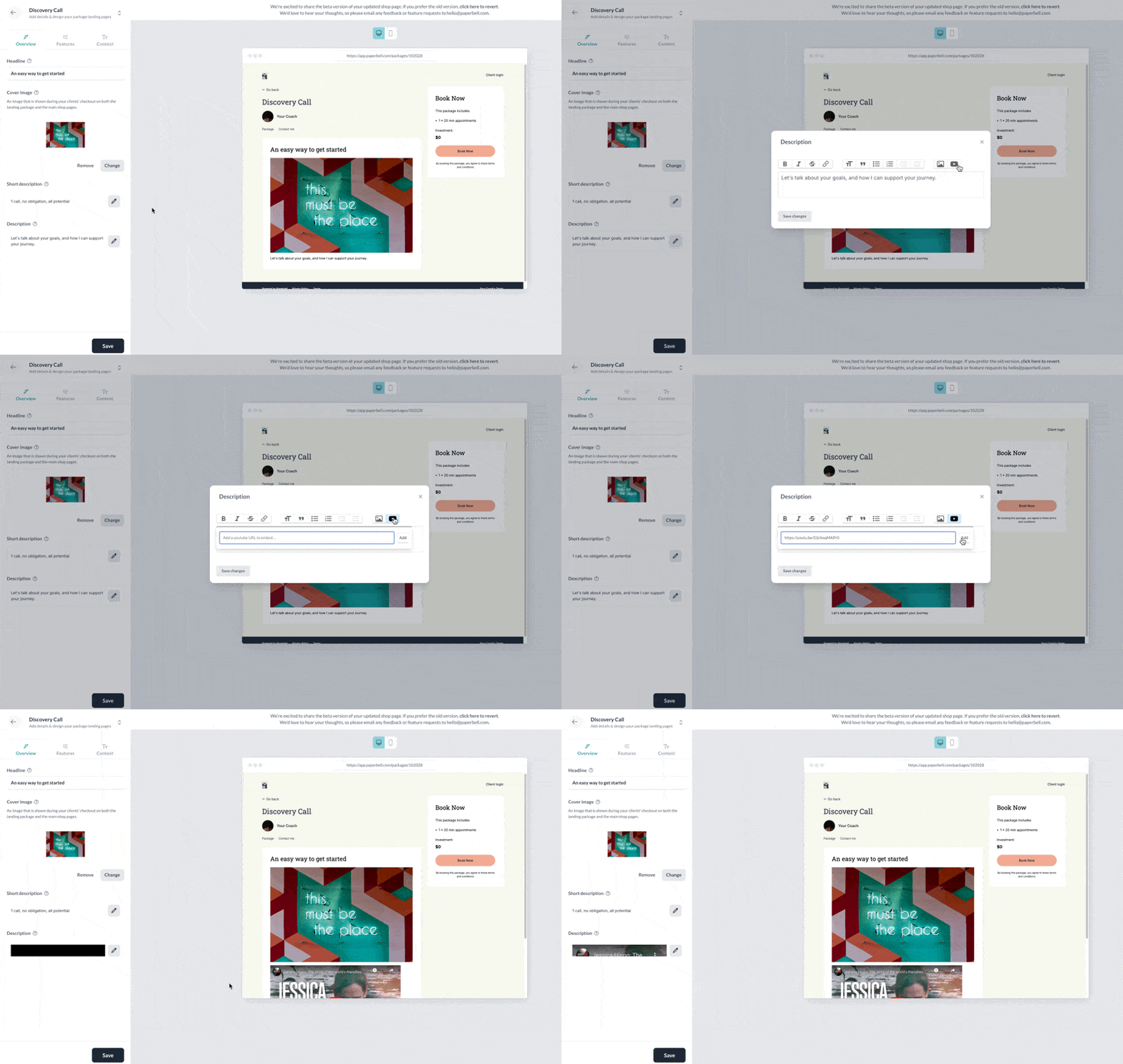
You can add a video to your short description of this package (it shows up in your website overview). Click into the Landing page of your package, Overview tab, and then Short description.
Click the pencil icon to edit. In the box that pops up, click that video icon and add your YouTube link.
Long description
If you have a video that conveys something special about your package, embed it directly in your package description.
Resizing your images
When you upload an image, our resizing tool will pop up. Adjust the lines to resize and refocus your image.
Canva image templates
You can also use our templates to size your images before uploading:
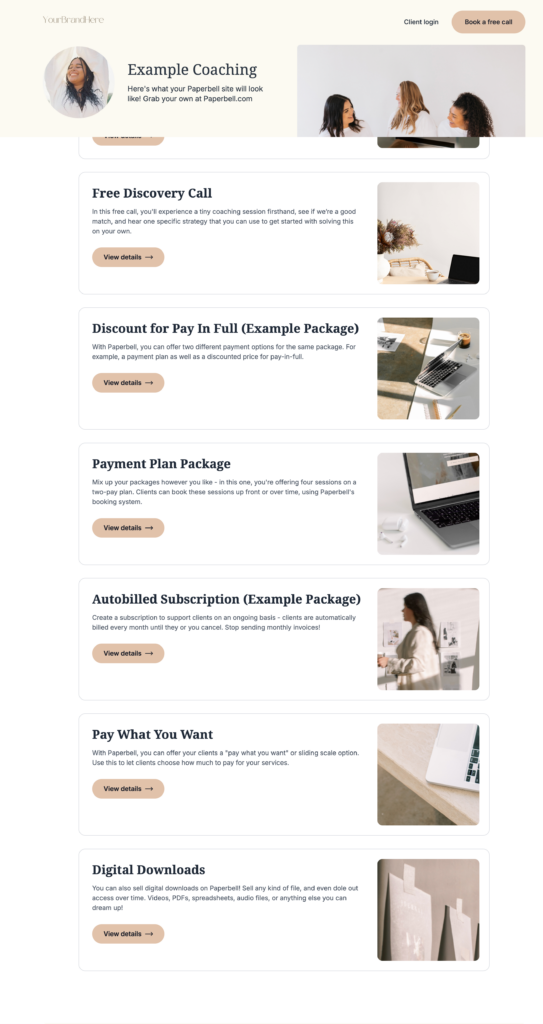
Can I see an example of a site with beautiful images?
We’ve got an example site for you right here. It’s a beaut!
(Psst — if you love how your Paperbell website turned out and would like to share it, feel free to send us a note and we’ll feature it here for inspiration.)
See also: homepage settings.