
Want to use your Zoom personal meeting ID for every Paperbell session? This guide is for coaches who want the same stable link for all appointments.
If you’re a coach looking for your Zoom link before a session, it will be in your Google invite. Also, if you log into Paperbell, you’ll see a list of appointments. Click on the one you need, and it will show the meeting link.
If you’re a client looking for the meeting link, check out the Google invite/event. Or, you can log into the Client Portal and see your appointment and its details.
Only use the instructions below if you do NOT want a unique Zoom link for each meeting.
How to find the Zoom link to put in Paperbell’s “Meeting URL” field
Zoom refers to your meeting link as your Zoom personal meeting ID which is sometimes abbreviated as PMI.
This link works as a meeting room that anyone with the link can join without a specific Zoom invitation.
To find your personal meeting link, log in to your Zoom account and go to https://us02web.zoom.us/profile.

Make sure the little green checkmark appears next to “Use this ID for instant meetings.” If the green checkmark is not there, click the “Edit” button on the right to turn it on.
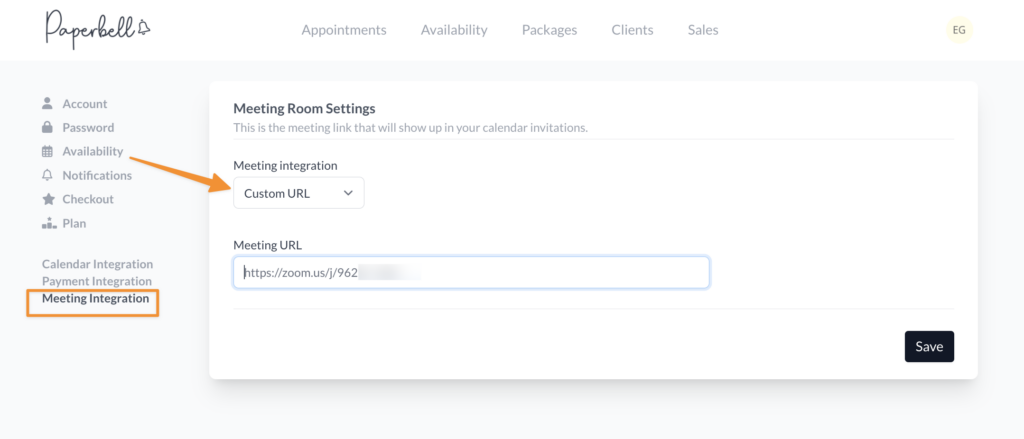
Click the “Show” link to show your full meeting ID, and copy and paste that link into your Paperbell meeting URL. Hit Save at the bottom of your screen.
Related pages: