
If you’ve connected www.yourdomain.com to your Paperbell website, there’s one more step we recommend: make sure yourdomain.com works too. That way, visitors reach your Paperbell website whether or not they type in the www first.
Before you get started
This guide assumes you’ve already connected www.yourdomain.com to Paperbell.
If you haven’t done that yet, start here: Connect your custom domain to Paperbell
If you already have another website at yourdomain.com, don’t follow this guide. Redirecting your domain would send visitors away from your existing website.
Instead, you can use a subdomain such as coaching.yourdomain.com for Paperbell.
Why do I need a redirect?
yourdomain.com and www.yourdomain.com are technically two different addresses.
Connecting www.yourdomain.com to Paperbell doesn’t automatically make yourdomain.com work too.
A redirect solves this by automatically sending anyone who visits yourdomain.com to your Paperbell website at www.yourdomain.com.
We’ll use a free service called Redirect.pizza to set this up.
Step 1: Create your redirect in Redirect.pizza
Go to Redirect.pizza and create an account (it’s free).
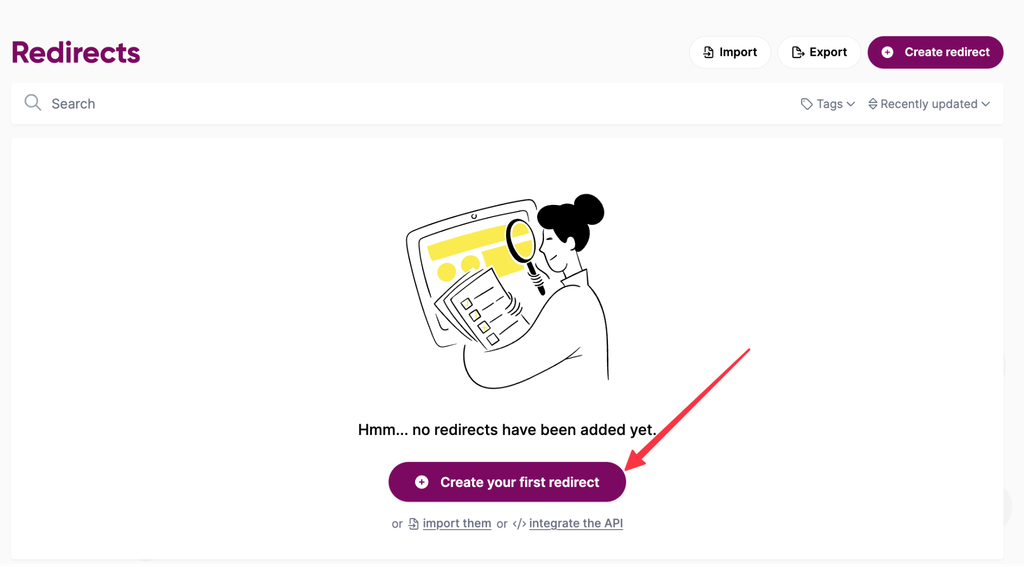
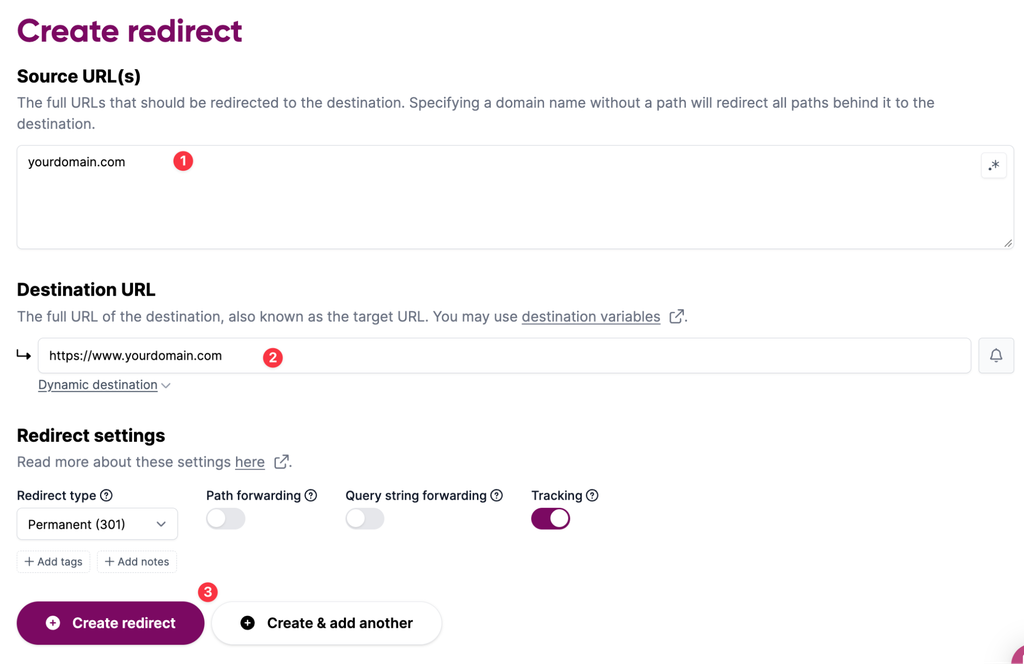
Create a new redirect using the following:
Source: yourdomain.com
Destination: https://www.yourdomain.com
Replace yourdomain.com with your own domain name.
For example, if your Paperbell website is: www.janecoaching.com you’ll redirect like so: janecoaching.com → https://www.janecoaching.com
Follow the prompts in Redirect.pizza to create a permanent (301) redirect.
Step 2: Find the DNS records provided by Redirect.pizza
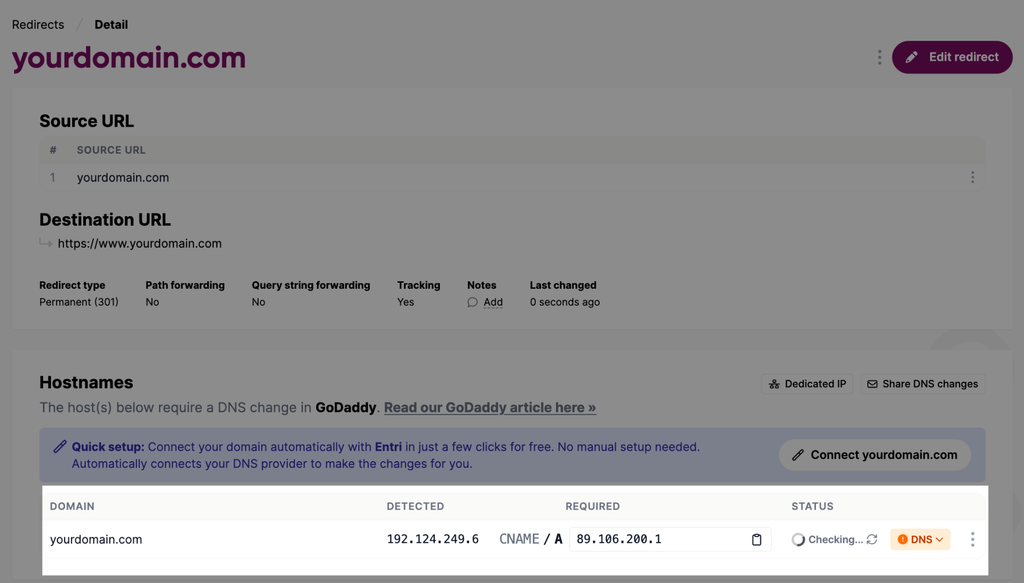
Once you’ve created your redirect, Redirect.pizza will show you the DNS record you need to add at your domain host. Keep this page open. You’ll need to copy the information shown there into your domain provider’s DNS settings.
Use the DNS values shown in your Redirect.pizza account rather than copying DNS values from another website or guide.
Step 3: Add the Redirect.pizza A record
Sign in to the company where your domain’s DNS is managed and add the A record provided by Redirect.pizza.
| Type | Name | Value |
| A | @ | Value provided by Redirect.pizza |
The @ represents your domain without www. Use the exact IP address shown in your Redirect.pizza account.
Need help adding the record? Follow your domain provider’s instructions:
- GoDaddy: Add an A record →
- Squarespace / Google Domains: Add an A record →
- Namecheap: Add an A record →
- Wix: Add or update an A record →
- Cloudflare: Manage DNS records →
- Porkbun: Add DNS records →
- Bluehost: Manage DNS records →
- Hostinger: Manage A records →
Using Wix? Leave the Host Name blank instead of entering @.
Already have an A record for @?
You may need to remove or replace an existing A record for @ before adding the Redirect.pizza record. Follow Redirect.pizza’s instructions for any conflicting records.
Be careful not to delete unrelated DNS records.
Don’t change your www CNAME. It should continue pointing to custom.paperbell.me.
Step 4: Wait and test your domain
DNS changes can take some time to update. Redirect.pizza will also need to recognize your DNS setup and configure HTTPS for your domain.
Once everything is active, open an incognito browser and test:
www.yourdomain.com and: yourdomain.com
Both should take you to your Paperbell website.
When you visit yourdomain.com, the address in your browser should automatically change to www.yourdomain.com.
That’s it!
Your setup is now:
yourdomain.com → www.yourdomain.com → your Paperbell website
Visitors can reach your Paperbell website whether or not they type www.